
Understand The Situation
“Help me confirm which store listing the QR poster is meant to open.”
Explore The System / Explore Our Store Online
Print a US Letter QR poster that opens your shop’s AI Business Directory listing.
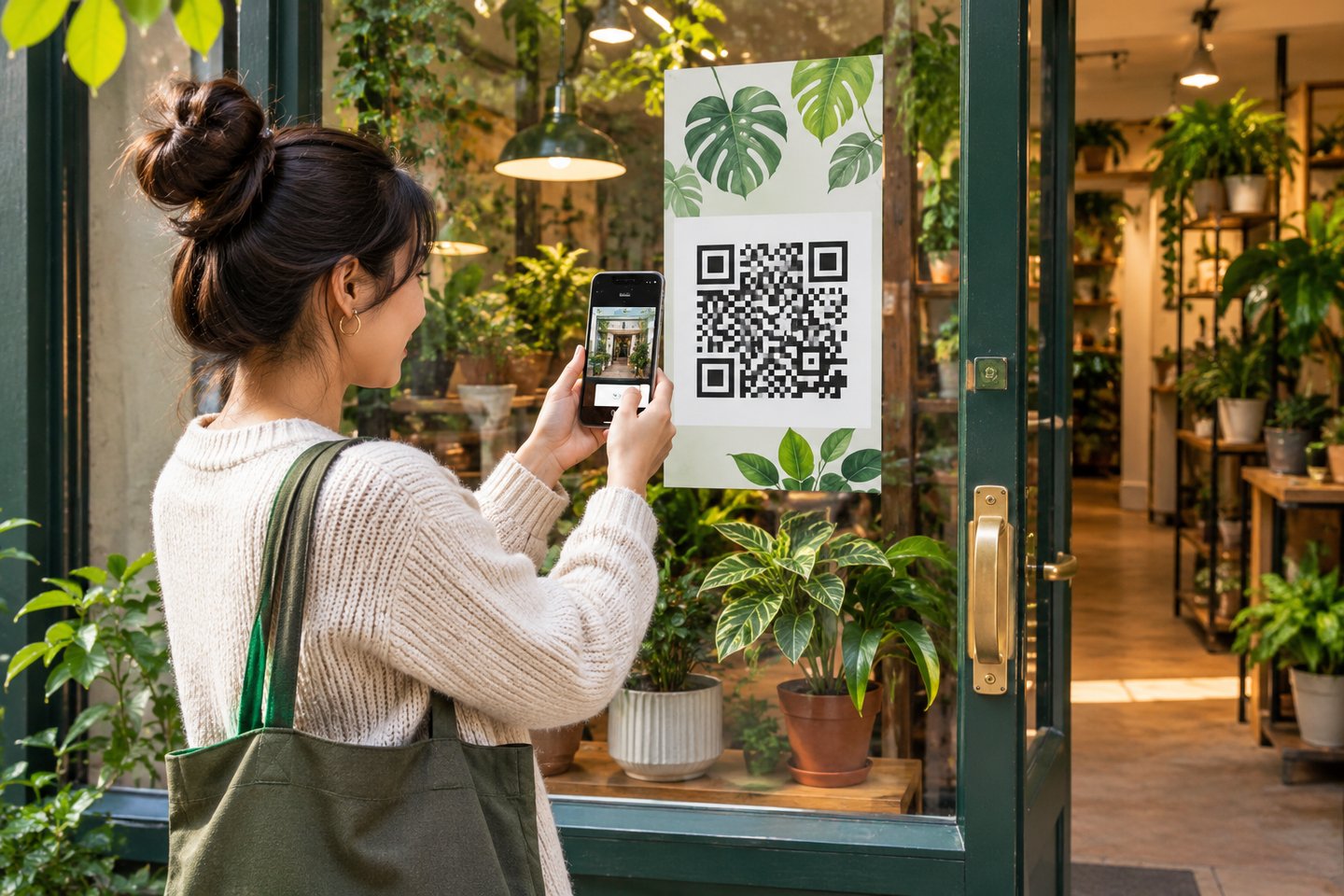
Explore Our Store Online / 1
Choose Explore Our Store Online from Reporting.
The system builds the QR code from the selected business’s directory listing address, so the business needs a listing address before the code can be displayed.
Check the business name before opening the poster, particularly if you manage more than one location. Each listing has its own destination, so the QR code should take shoppers to the store whose sign they are reading. Scan it from a phone before printing several copies.
Look for the business name and the details you expect the customer to see. If the poster is unavailable because the business has no listing address, confirm the directory setup before trying to make a sign for that location.
Explore Our Store Online / 2
Print the poster for a counter, stall, or window.
Customers can scan it with a phone to open the directory listing and browse the information the business makes available.
Pick a place where shoppers can take out a phone and scan comfortably. For example, a window sign can let someone browse after closing, and a counter sign can give someone in line information about the shop. Print the poster at a size that keeps the code clear, then test it from the distance a customer will use.
Check the surrounding light and any window glare before you settle on a location. Keep a replacement handy if the printed code becomes hard to read. Check that the person scanning the sign can read which store the poster belongs to.

Explore Our Store Online / 3
Use the online poster when you want customers to land directly on the directory listing.
The companion ChatGPT poster opens a shopping conversation instead.
Decide what you want the customer to do after they scan. If they should see your business information and browse a listing, use the online poster. If they should begin by asking questions about the items your store makes available, use the ChatGPT version.
Give the signs different labels when you display both so shoppers know which experience they are opening. Review both destinations whenever you replace a sign or move it to another location that represents a different business in your account. Keep the file names distinct if you save printable copies of both posters for several locations.
A Conversation That Leads To Action
Use these examples to explore the tool with ChatGPT, Claude, or another connected assistant that has access to the relevant records or reports.
When preparing material for customers or staff, describe where it will be used. Ask the assistant to help you plan a test before you print copies.
“Help me confirm which store listing the QR poster is meant to open.”
“Draft a short line to display beside the poster so shoppers know where it leads.”
“Make a checklist for testing the code on a phone before we print copies.”
Use an authorized business connection for supported actions. Ask the assistant to show the records behind its summary and identify any steps that need your review.
Choose Your Next Step
Bring a promotion or shopping scenario to your demo. We can walk through how customers find an item and what your team sees at checkout.